
A backup destination is a bucket on AWS S3, Backblaze B2, Cloudflare R2, Wasabi, MinIO, Garage or any other service that speaks the S3 API. After each change to your vault, the web app, the Chromium Extension and the Android app upload the same encrypted .cryx file you get from Download backup. Your devices talk to the bucket directly. Our servers never see the bucket or its keys, and you don't need an Online Services account.
Prepare a bucket
- 01
Create a bucket for vault backups, such as
my-vault-backups. Keep it private. - 02
Create an access key that can only reach that bucket. Your devices need to list the bucket and write, read and delete objects in it.
- 03
Note the endpoint, the region and the key's ID and secret.
On AWS, a policy for that key looks like this:
{
"Version": "2012-10-17",
"Statement": [
{
"Effect": "Allow",
"Action": ["s3:ListBucket"],
"Resource": "arn:aws:s3:::my-vault-backups"
},
{
"Effect": "Allow",
"Action": ["s3:PutObject", "s3:GetObject", "s3:DeleteObject"],
"Resource": "arn:aws:s3:::my-vault-backups/*"
}
]
}If you turn on Keep every backup, the key doesn't need s3:DeleteObject. Old backups then stay until your bucket's lifecycle rules remove them, and a compromised device can't delete anything with that key.
MinIO, Garage and most self-hosted servers need path-style addresses, which put the bucket in the path, as in https://host/bucket. Cloudflare R2 uses the region auto.
Allow the web app
Browsers block a page from talking to another site unless that site allows it. The web app therefore needs a CORS rule on the bucket. The Chromium Extension and the Android app don't. Put the address you open the web app from in AllowedOrigins, without a path. Self-hosters use their own domain.
{
"CORSRules": [
{
"AllowedOrigins": ["https://www.cryptex-vault.com"],
"AllowedMethods": ["GET", "PUT", "DELETE"],
"AllowedHeaders": ["*"],
"MaxAgeSeconds": 3600
}
]
}Save that as cors.json and apply it with the AWS CLI. For other providers, add --endpoint-url with your endpoint, or set the same rule in the provider's console.
aws s3api put-bucket-cors --bucket my-vault-backups \
--cors-configuration file://cors.jsonWithout the rule, the connection test in the web app fails with "Couldn't reach the bucket".
Add a destination
- 01
Unlock your vault and open Backup Center. On Android it is in Settings.
- 02
Under Your own storage, choose Add destination.
- 03
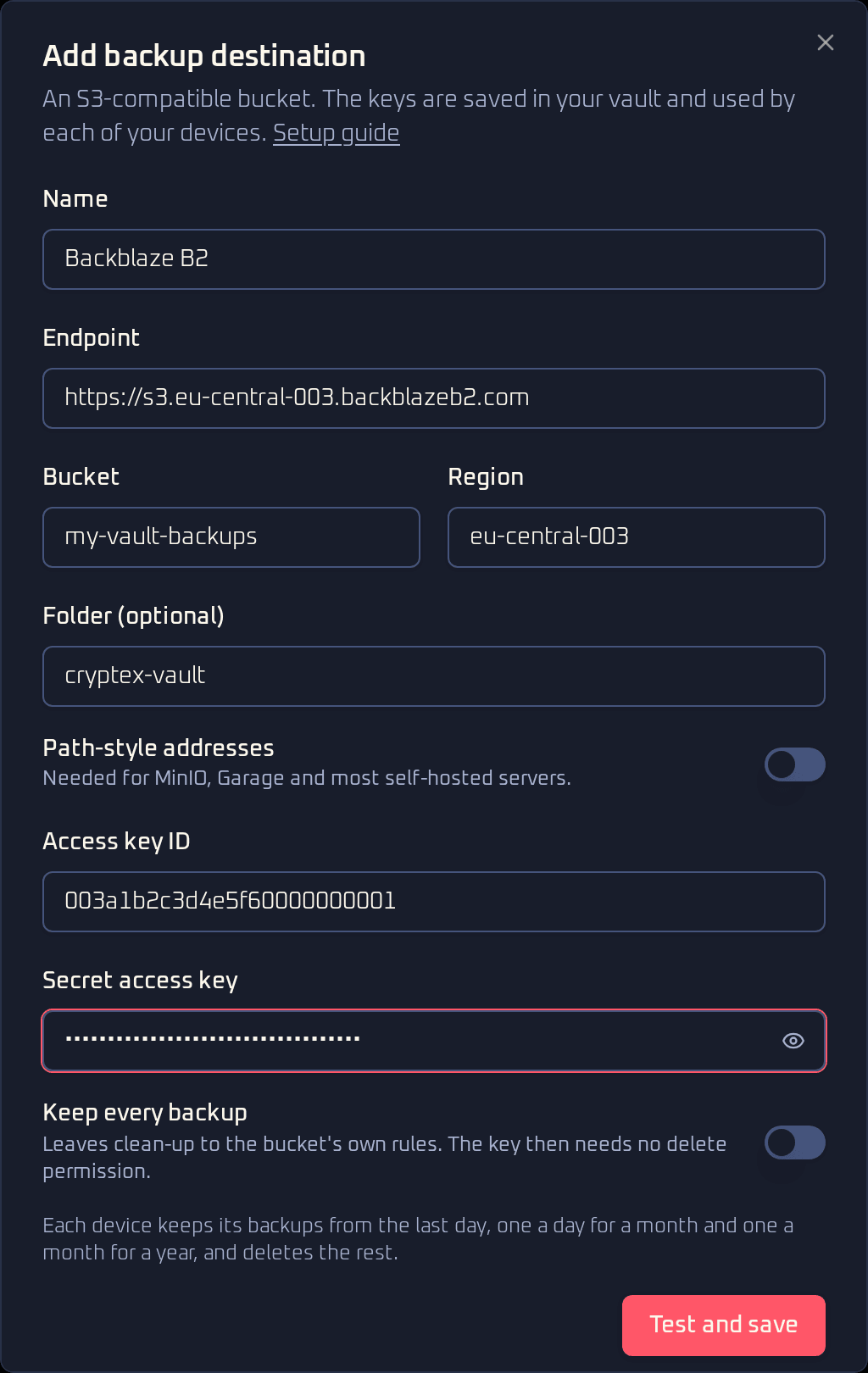
Enter a name, the endpoint, the bucket, the region and the access key. Add a folder if the bucket holds other files.
- 04
Choose Test and save. Cryptex Vault writes, lists and deletes a small test file, then uploads the first backup.
 View full size
You only add a destination once. It is saved in your vault, so your linked devices get it with the next sync and start uploading too.
How uploads work
Each device uploads about 30 seconds after the last change, while the vault is unlocked. If the upload fails, it tries again with growing gaps of up to five minutes. A device uploads anything left over the next time you unlock it. Before the vault locks, it makes one last attempt.
Every device writes to its own folder in the bucket:
<folder>/<destination ID>/<device>/2026-10-26T09-14-03-512Z.cryxA device uploads only when the vault's contents changed. After a successful upload, it keeps its backups from the last day, the newest of each day for a month and the newest of each month for a year, the same as managed backups, and deletes its other files. It never touches other devices' folders or files it didn't write.
Reinstalling the app, clearing the browser's site data or linking the device again gives it a new folder, and nothing cleans up the old one. Delete old folders in your provider's console, or add a lifecycle rule that removes files older than 400 days. Unless Keep every backup is on, devices never keep files that old, so the rule only catches abandoned folders.
 View full size
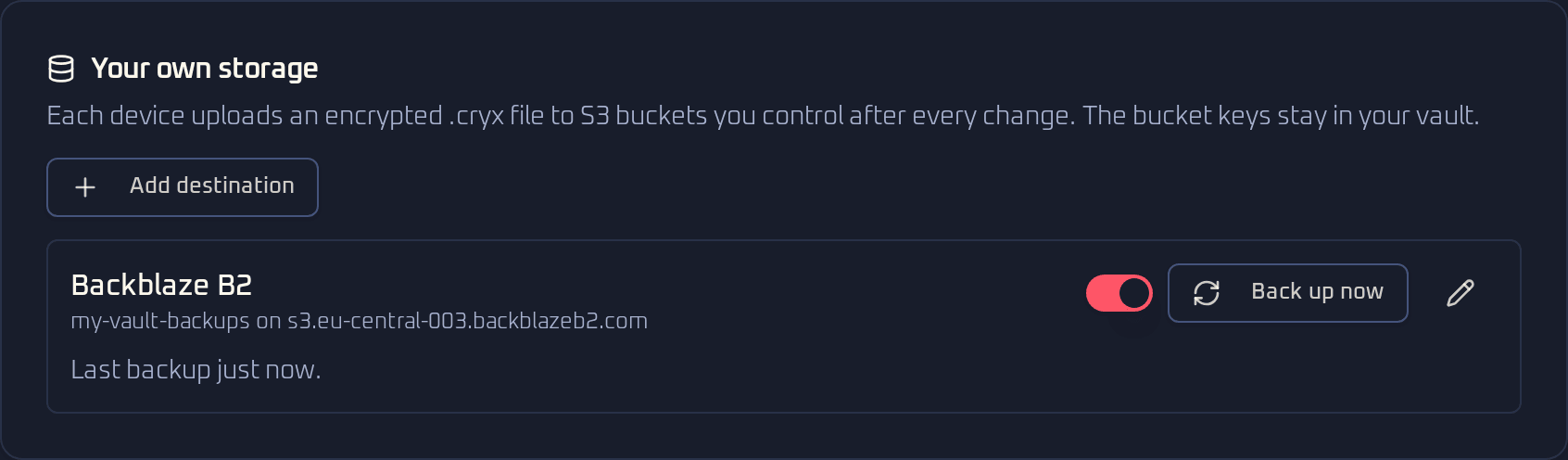
Use Back up now to upload straight away. The switch pauses a destination for all your devices. Removing a destination stops the uploads but leaves the files in the bucket.
Restore from a bucket
- 01
Open Cryptex Vault and select the Restore tab. Choose Restore from your own S3 storage. On Android, choose Your own storage as the backup source.
- 02
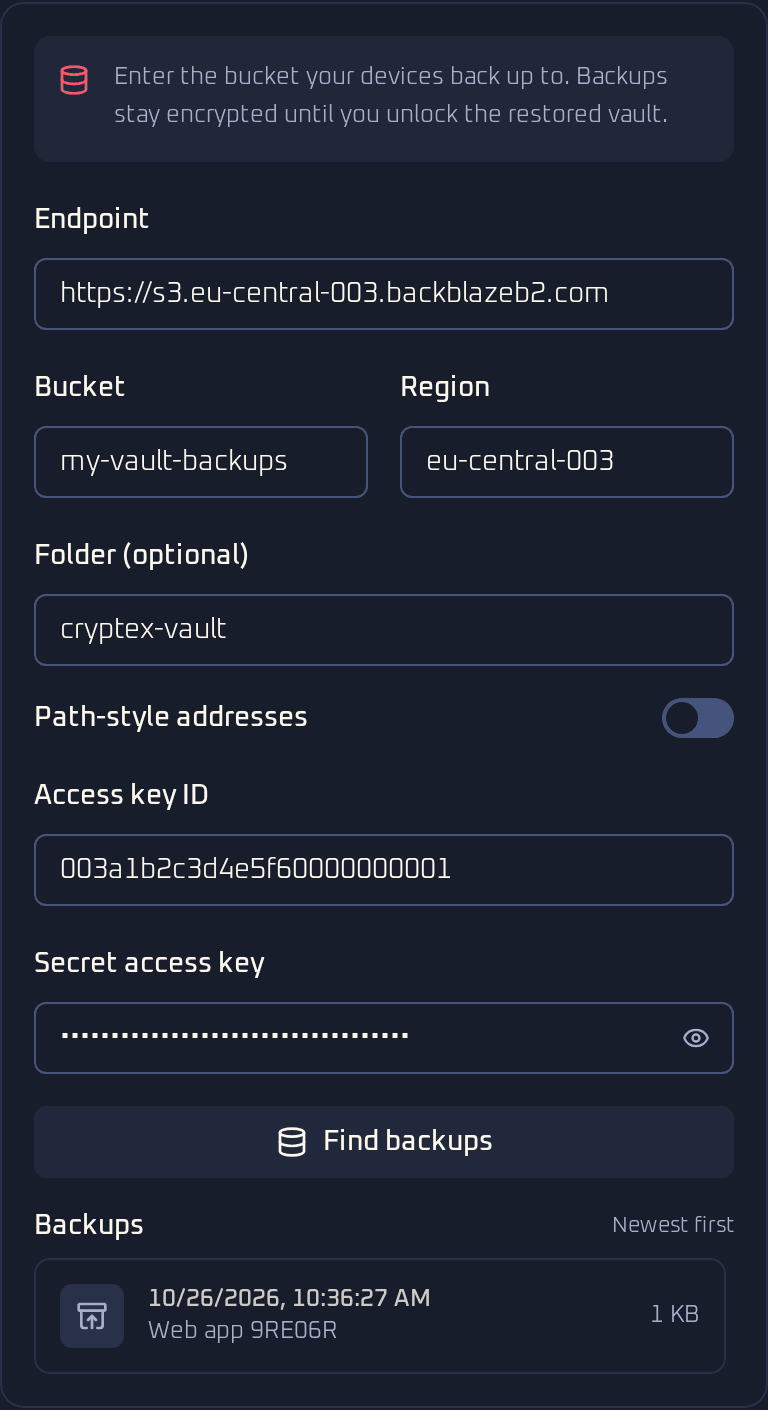
Enter the same endpoint, bucket, region, folder and access key as on your devices, then choose Find backups.
- 03
Pick a backup. The list shows the newest first, with the device that made each one.
- 04
Name the restored vault, choose Restore Vault, and unlock it with its master password or vault recovery code.
 View full size
The restored vault still has the destination, so it starts uploading again under a new device folder.
After a password change
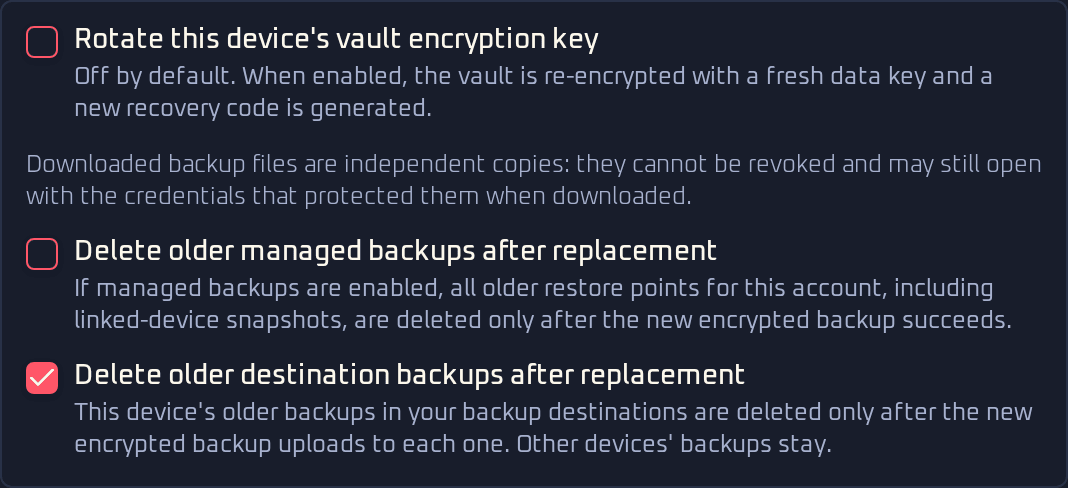
Changing the master password, the additional key protection or the recovery code uploads a new backup to every destination right away. Older backups still open with the old secrets. To remove them, turn on Delete older destination backups after replacement when you save the change. Each destination then deletes this device's older backups once the new one has uploaded there. Other devices have their own master passwords, so their backups stay.
 View full size
Where the keys live
The bucket keys are stored inside your encrypted vault. They sync to your linked devices and are part of every backup and export. Anyone holding the keys can download your backup files, but can't open them without your vault secrets.